PiFlux · Volume 7
OS Options & Multiboot
All six supported operating systems on the PiFlux, multiboot strategies, and the boot-selection workflow
7.1 The PiFlux OS Ecosystem
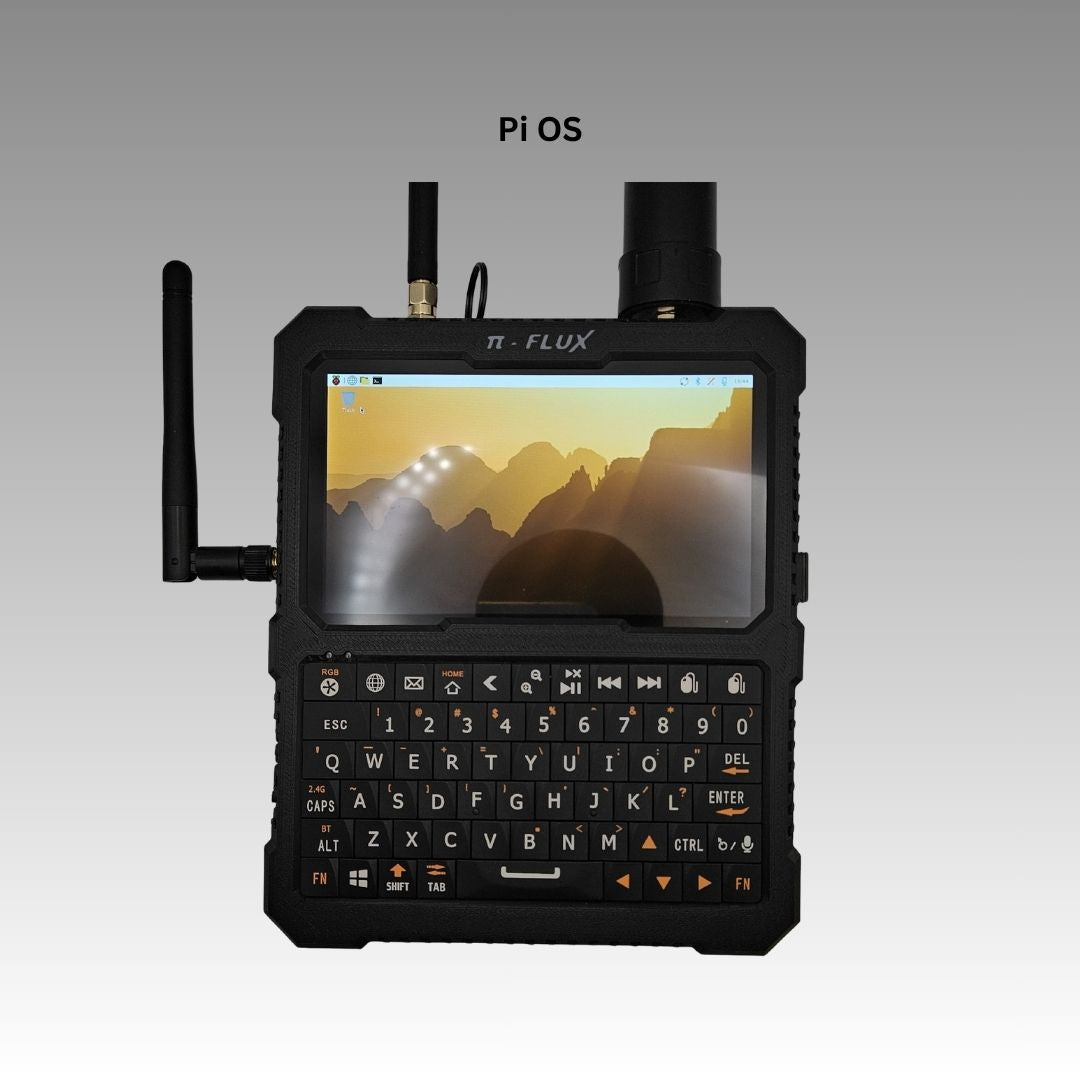
Carbon Computers’ entire OS story for the PiFlux rests on one mechanism: the microSD card is the operating system. Power the unit down, swap the card, power it back up, and the PiFlux is a different machine — different kernel, different desktop, different tool set — with no firmware reflash and no software multiboot layer involved. The product page states this plainly: “Using swappable MicroSD cards, switching operating systems takes only seconds.” Nothing on the page describes a bundled multiboot tool, a boot-time picker, or dual-boot partitioning — the swap-the-card model is the entire documented mechanism, and Section 3 covers it as such.
Carbon Computers lists six supported operating systems: Raspberry Pi OS (default), Ubuntu, Kali Linux, Parrot Security OS, Twister OS, and Batocera. “Supported” means Carbon Computers has tested or listed these six on its own hardware, not that the list is exhaustive — any distribution publishing a Raspberry Pi 5 arm64 image will very likely boot, since the PiFlux’s board (Cortex-A76 cores, VideoCore VII GPU, RP1 I/O controller) is stock Pi 5 rather than a modified variant. The value of the six-OS list is that Carbon Computers has actually run and photographed them, which is more than can be said for an arbitrary community image.
The six span genuinely different use cases. Raspberry Pi OS is the manufacturer-tuned daily driver. Ubuntu is the mainstream alternative for a familiar desktop and an independent release cadence. Kali Linux and Parrot Security OS are both Debian-based penetration-testing distributions, overlapping in purpose but differing in desktop and tool philosophy. Twister OS is a Pi OS derivative built around cosmetic reskinning. Batocera is a single-purpose retro-gaming appliance OS — unlike the other five, it isn’t a general-purpose desktop at all.
Two volumes bear directly on the choices below. Volume 2 §2.3–2.4 covers the 8 GB and 16 GB RAM tiers, relevant since heavier desktops (Ubuntu’s GNOME especially) push harder against the lower tiers than Pi OS’s lighter default. Volume 3 covers booting from NVMe for builders with the M.2 Mod installed, which Section 4.3 leans on directly. Volume 8 documents the SDR software stack (GQRX, SDR++, GNU Radio) against Raspberry Pi OS specifically — worth weighing before picking an alternate OS for radio work.
7.2 Operating System Profiles
7.2.1 Raspberry Pi OS
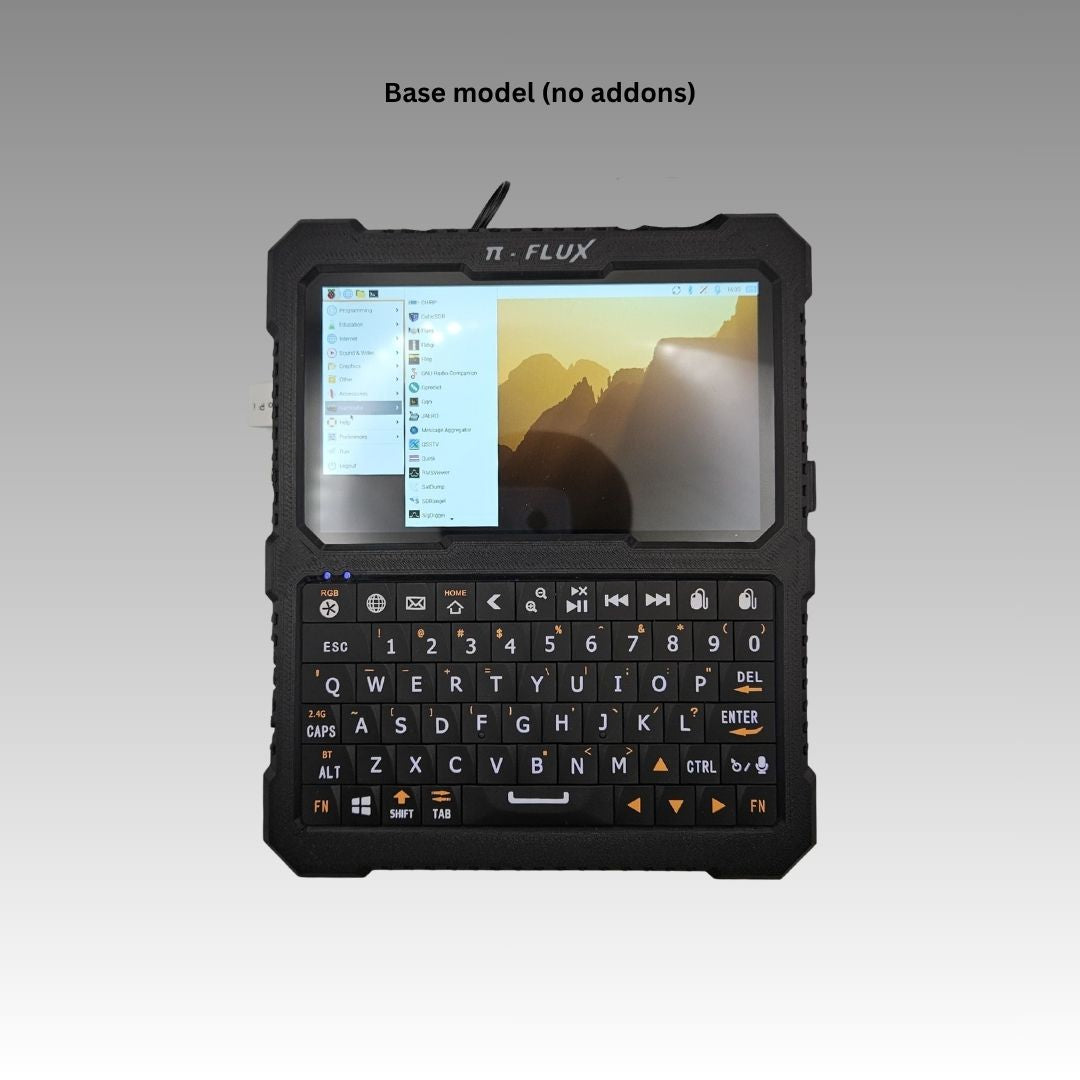
Raspberry Pi OS is the PiFlux’s default and the safest choice for any builder not already committed to an alternative. It ships on the bundled microSD card of every complete-unit configuration, and it is the OS every other volume in this series assumes unless stated otherwise — the M.2 boot procedure (Volume 3), the power and thermal notes (Volume 4), and the SDR software stack (Volume 8) are all written against it.
Two flavors matter here. Raspberry Pi OS with Desktop ships the Foundation’s own environment (branded PIXEL, running on the labwc Wayland compositor by default since the Bookworm update, with LXDE/X11 retained as a legacy fallback) — lightweight by design, since it has to run acceptably on the 2 GB tier as well as the 16 GB one. Raspberry Pi OS Lite drops the desktop for a headless command-line image, appropriate for driving the PiFlux over SSH or running it as a fixed-purpose appliance (a LoRa relay node, say) rather than an interactive desktop. Raspberry Pi Imager lists “Raspberry Pi OS (64-bit)” as its flagship Pi 5 recommendation, and that 64-bit image is the one to use — a 32-bit userland caps per-process addressable memory in a way that costs real headroom, and current desktop applications increasingly assume 64-bit anyway.
At the PiFlux’s 1920×720 panel, PIXEL renders correctly but at an unusual aspect ratio — roughly 2.67:1, wider relative to height than a standard 16:9’s 1.78:1. The 720-pixel height poses no problem for the taskbar, but application windows tuned for 16:9 or 4:3 can show pillarboxing when maximized. The Raspberry Pi Configuration tool’s Display tab exposes a scaling factor (100/125/150/200%) worth adjusting by eye for the panel’s small physical size, independent of the aspect-ratio quirk.
Raspberry Pi OS carries one advantage the other five can only partially match: its kernel and firmware are maintained by the same organization that designs the Pi 5 board. GPIO overlays, the camera stack, the fan PWM path, and tools like rpi-eeprom-update are developed against it first and land elsewhere afterward, if at all. For the PiFlux’s add-on ecosystem — GPS/LoRa, the M.2 Mod’s PCIe path, the Active Cooling System’s fan header — Pi OS is the distribution most likely to have every driver working with the least configuration, as Section 6’s matrix reflects.
7.2.2 Ubuntu
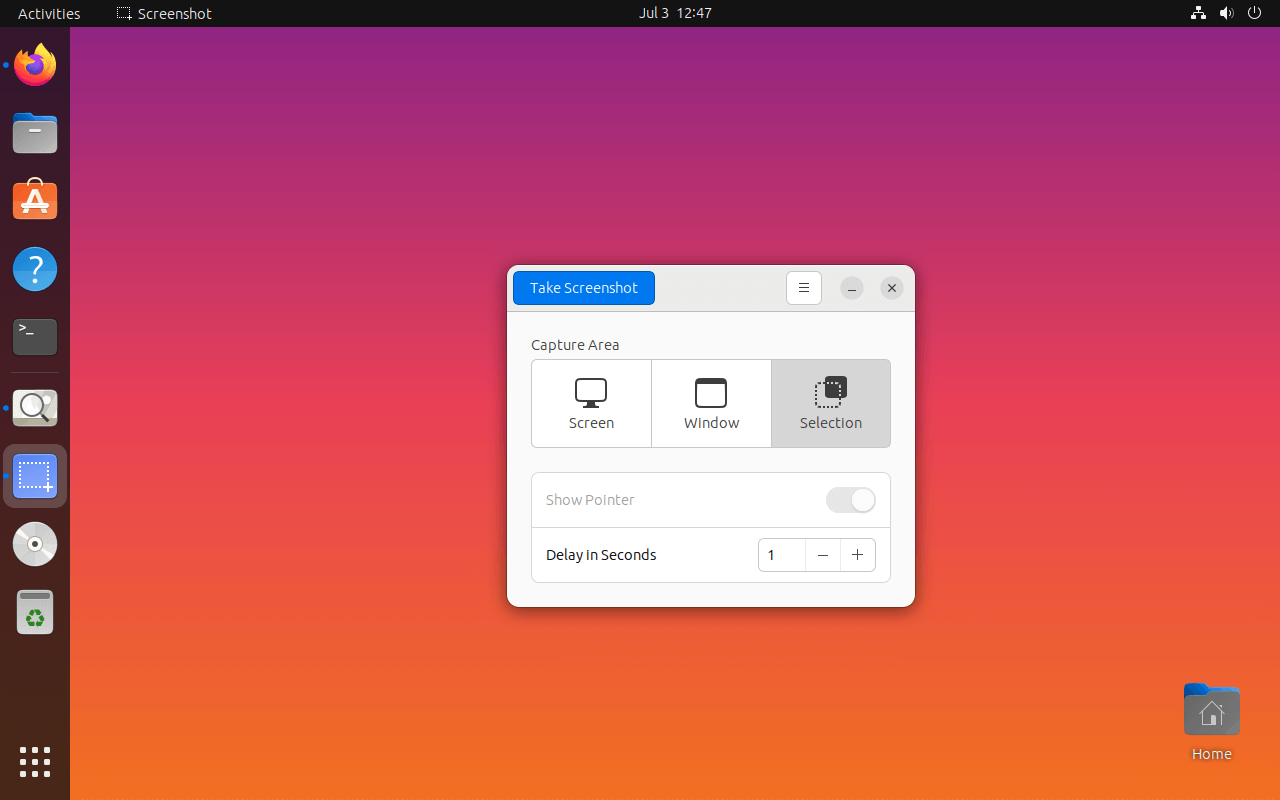
Ubuntu 24.04 LTS is the first Ubuntu long-term-support release with native, first-party Raspberry Pi 5 arm64 support, shipping server and desktop preinstalled images from ubuntu.com/download/raspberry-pi (a single image covers both the Pi 4 and Pi 5). The desktop build carried GNOME 46 on kernel 6.8 with Mesa 24.0.5 for the VideoCore VII driver path at the initial 24.04 release — a full “extended” software set rather than a stripped-down install; subsequent 24.04.x hardware-enablement (HWE) point releases have since moved the kernel/Mesa stack forward, so a freshly downloaded image will run newer versions than these launch figures. Ubuntu also bundles Pemmican, a small Pi-specific utility that watches for and warns about power-supply issues on the Pi 5, a detail that matters on a battery-powered device where an undervoltage warning is worth seeing rather than silently throttling in the background.
The practical tradeoff against Raspberry Pi OS is memory footprint. GNOME is substantially heavier than PIXEL, and the PiFlux’s 2 GB configuration will be genuinely tight running Ubuntu Desktop — closer to unusable for real multitasking than merely conservative. The 4 GB tier is workable for light use; the 8 GB and 16 GB tiers (Volume 2 §2.3–2.4) are where Ubuntu Desktop stops feeling like a compromise, and a builder set on Ubuntu as the primary OS should treat that RAM guidance as more binding than for a Pi OS-only build. Ubuntu Server paired with a lighter desktop installed manually is the documented alternative for Ubuntu’s package ecosystem without GNOME’s overhead.
Ubuntu ships its own mainline-tracking kernel (6.8 at release) rather than the Foundation’s downstream tree. Mainline kernels have absorbed most of the Pi 5’s core platform support — PCIe/NVMe and the RP1 GPIO controller are reasonably well upstreamed — but Pi-specific conveniences the Foundation ships first (fan-curve tuning, camera-stack niceties, overlay-based add-on configuration) can lag Raspberry Pi OS’s vendor-patched kernel by some interval; worth checking Ubuntu’s current hardware-support documentation before relying on a specific add-on. GNOME’s Settings → Displays scaling is the equivalent of §2.1’s PIXEL scaling factor at the 1920×720 panel, with the same pillarboxing consideration.
7.2.3 Kali Linux
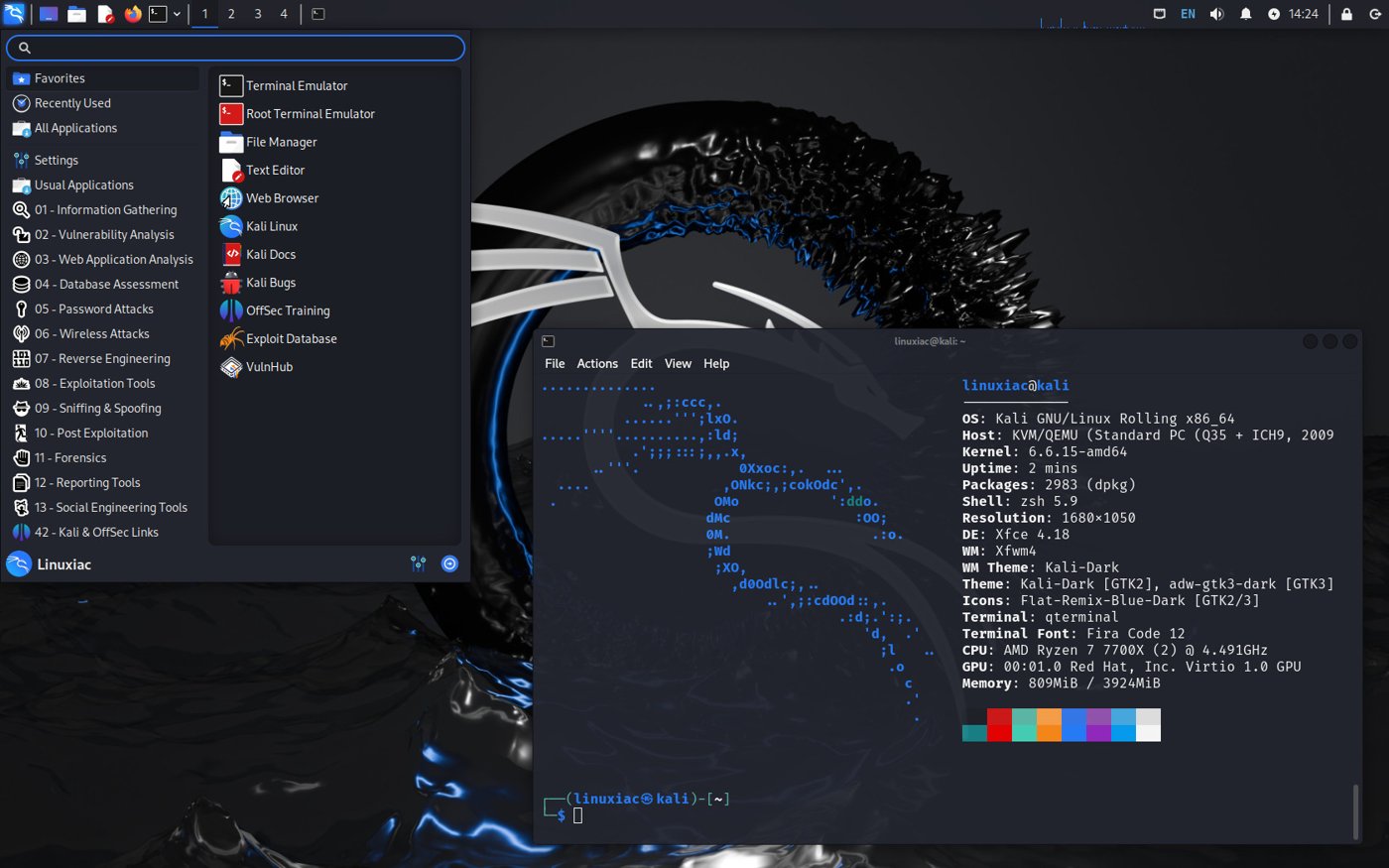
Kali Linux publishes an official Raspberry Pi 5 arm64 image, distinct from the shared “Raspberry Pi 2/3/4” image used for earlier boards — a dedicated raspberry-pi5 build with its own kernel headers package (linux-headers-rpi-2712, named for the Pi 5’s BCM2712 SoC), separate from the linux-headers-rpi-v8 package used on earlier 64-bit boards. The desktop is Xfce under Xorg with LightDM — lighter than Ubuntu’s GNOME, closer in weight to Pi OS’s PIXEL, and comfortable on the 4 GB tier and above.
Kali’s value on the PiFlux is almost entirely its pre-installed security tool set: aircrack-ng, Wireshark, Metasploit, and the rest arrive ready to use. The External WiFi Mod (Volume 5 §5) is the clearest driver for choosing Kali specifically — its kernel and driver packaging put real effort into the wireless chipsets favored for monitor-mode and packet-injection work, the exact capability the mod exists to unlock. A builder running Kali purely for its desktop tools without the External WiFi Mod is arguably better served by Raspberry Pi OS with those tools installed individually; for the pentest-and-monitor workflow the mod is built for, Kali’s driver support is the more direct path.
The same 1920×720 scaling considerations apply as for Pi OS and Ubuntu — Xfce exposes its own scaling control, and the aspect-ratio effect on window layout is identical regardless of which desktop draws it. Kali’s Pi 5-specific kernel tracks reasonably close to the Foundation’s own patch set, so support for the PiFlux’s GPIO-based add-ons is generally good; exact status per add-on is in Section 6.
7.2.4 Parrot Security OS
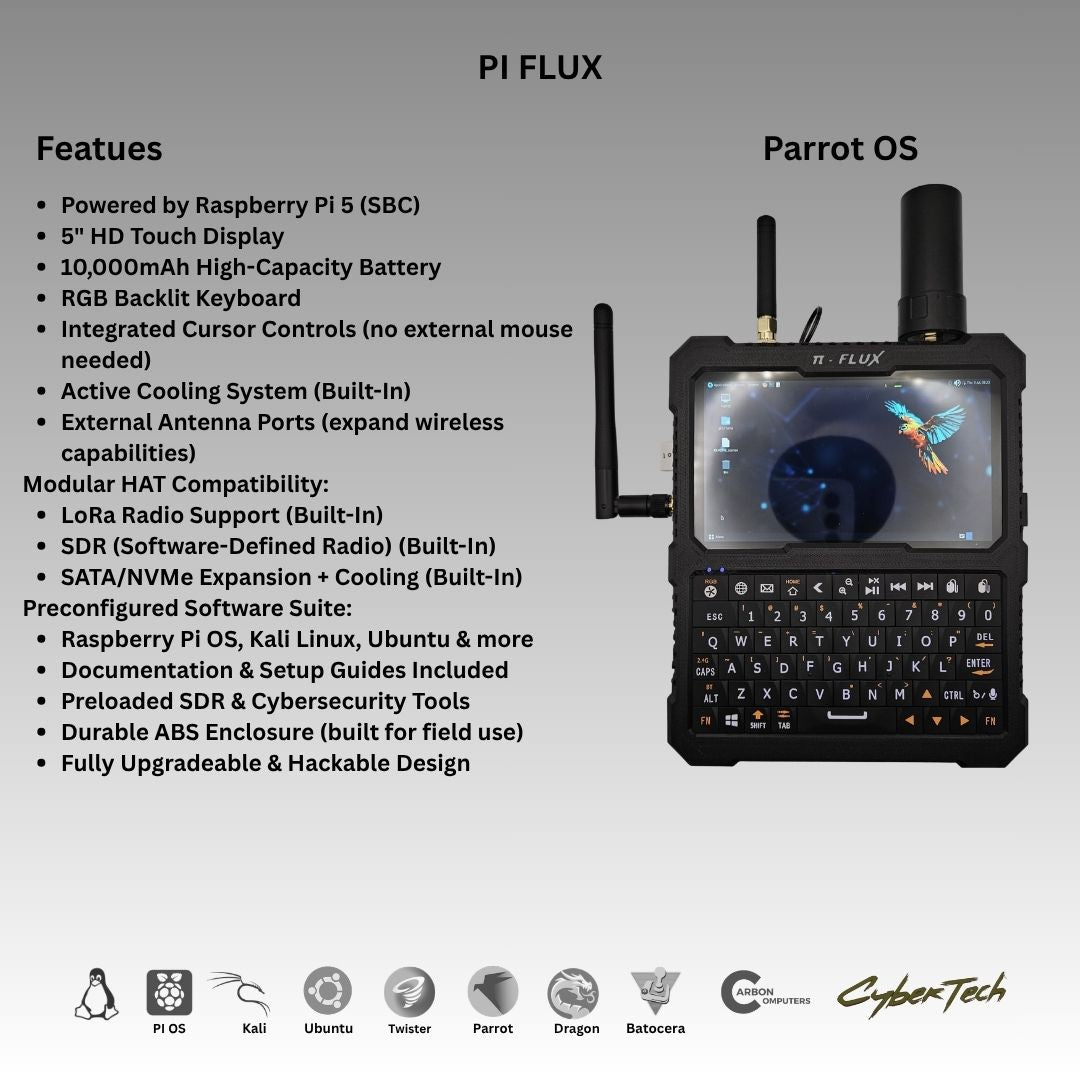
Parrot Security OS is Debian-based, like Kali, and the two overlap substantially in purpose and tool catalog — choosing between them is choosing a philosophy and desktop more than a fundamentally different tool set. Parrot’s default desktop is MATE rather than Kali’s Xfce; MATE tends to run a shade lighter, though not enough to decide the matter on its own above the PiFlux’s 2 GB tier. Parrot’s distinguishing feature is a stronger built-in emphasis on privacy and anonymity tooling (Tor integration, AnonSurf) alongside its pentest tool set, versus Kali’s narrower, deeper focus on offensive-security tooling specifically.
Parrot maintains an active Raspberry Pi image line (parrot-rpi-gen) and has explicitly targeted improved Pi 5 support recently — Parrot 6.1 moved its Raspberry Pi image to the Linux 6.6 LTS kernel specifically to improve Pi 5 compatibility and peripheral driver coverage. That’s a current, real data point, but Parrot’s Raspberry Pi build has historically had a smaller community and slower cadence than Kali’s; verify against current Parrot documentation that a specific add-on’s driver or overlay (LoRa, External WiFi Mod, GPS) is confirmed on the Pi 5 image rather than assume parity with Kali.
For a builder leaning toward the Debian-security family, the practical decision is Kali for the deepest, most actively-tested offensive tool set and strongest confirmed match to the External WiFi Mod, or Parrot for a lighter desktop and built-in privacy toolkit — both are credible PiFlux choices.
7.2.5 Twister OS
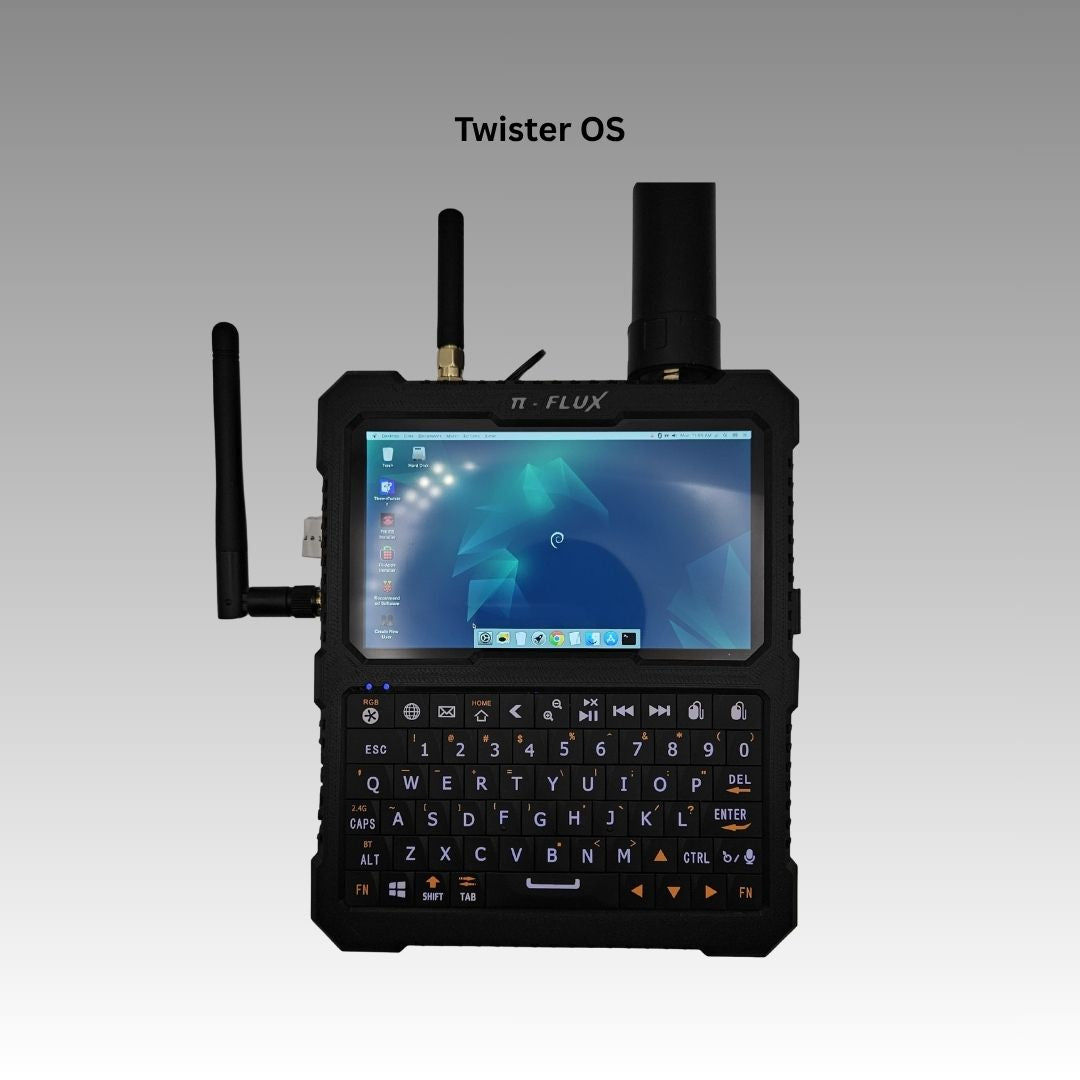
Twister OS is a Raspberry Pi OS derivative distinguished almost entirely by its presentation layer: it reskins the desktop to resemble macOS or Windows, bundles a curated set of pre-installed applications and games, and supports theme-switching between look-and-feel presets. Under the skin it is Pi OS — kernel, driver support, and hardware compatibility all inherit from whatever Raspberry Pi OS release it’s built on, rather than an independent foundation the way Ubuntu, Kali, or Parrot represent.
Twister OS continues to publish releases explicitly targeting the Pi 5 (and Pi 500) alongside the Pi 4 and 400 — version 3.1.0, current as of this writing, lists Pi 4/400/5/500 support directly. That said, it has historically been a much smaller undertaking than the other five entries here — closer to a passion project (Pi Labs) than a distribution with Ubuntu’s or Kali’s institutional backing — so its update cadence and long-term maintenance are less predictable over a multi-year horizon. A builder should treat “supports Pi 5” as accurate for the current release rather than a durable guarantee, and expect any Pi 5-specific fix to land on Twister OS only after it has already landed upstream in whatever Pi OS build it’s tracking.
On the PiFlux, Twister OS’s value is aesthetic and application-bundling convenience rather than any capability the other OSes lack — the intended audience wants Pi OS-equivalent hardware compatibility (including Section 6’s add-on driver support) with a more familiar-looking desktop, and is comfortable with a smaller-team maintenance model. A builder prioritizing driver maturity or update assurance is better served starting from stock Raspberry Pi OS.
7.2.6 Batocera
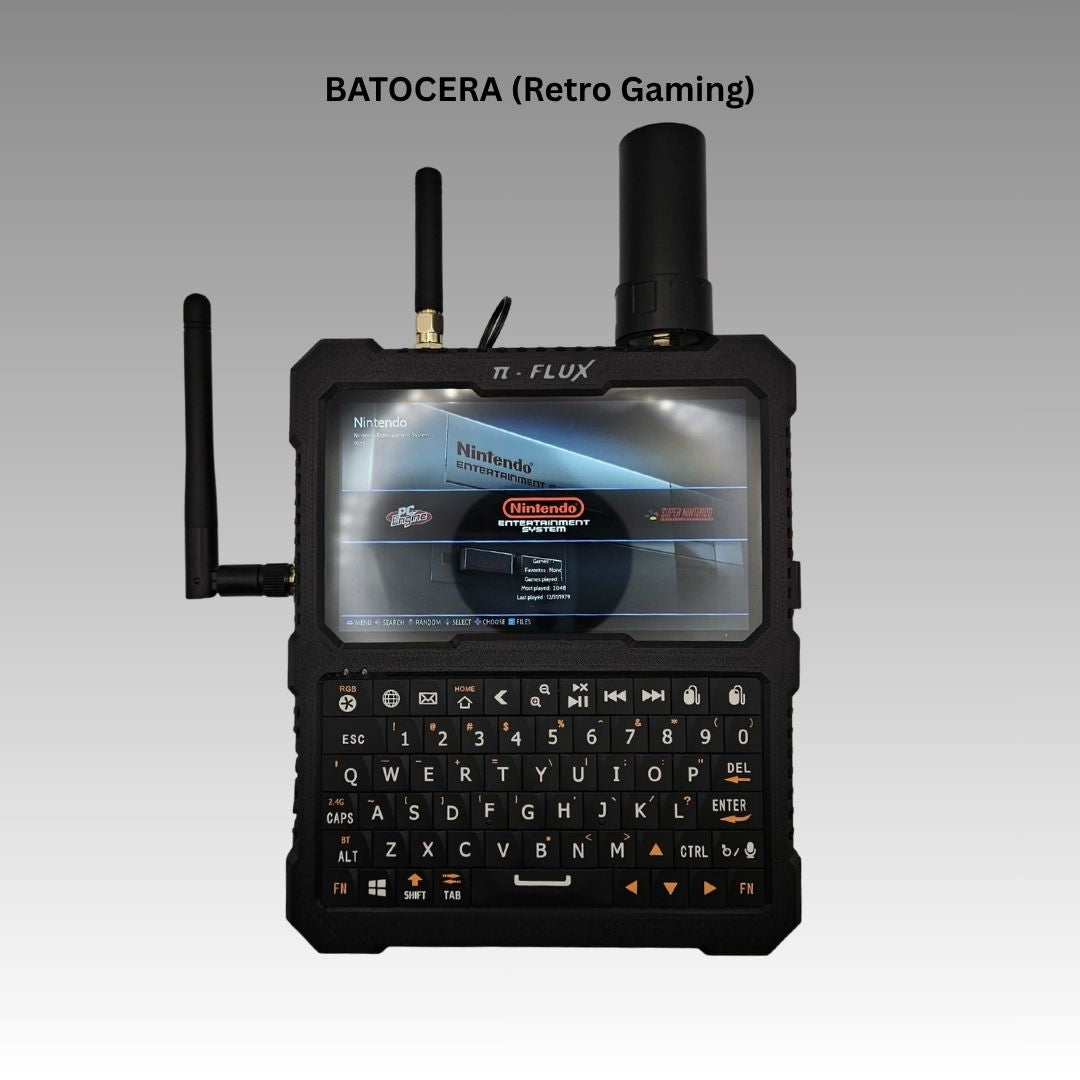
Batocera is a purpose-built retro-gaming appliance OS, not a general-purpose desktop — it boots directly into EmulationStation, a game-library front end backed by a pre-configured RetroArch emulator core stack covering dozens of legacy console and computer platforms. Its system partition runs largely read-only, trading flexibility for stability: a botched configuration change is far less likely to leave the system unbootable than on a conventional desktop install, which suits a device swapped in and out via microSD rather than tinkered with continuously.
Batocera ships a stable Raspberry Pi 5 (bcm2712) image in its current release line — v43 (“Glasswing,” 2026) followed v42 in late 2025, both well past the Pi 5’s early-support window — so, like the other five OSes here, its Pi 5 support is a stable tier rather than a beta preview. (A separate bleeding-edge “butterfly” branch exists for testers, as it does for every supported board.) The upside is substantial: the Cortex-A76 cores and VideoCore VII GPU make console generations that are marginal or unplayable on the Pi 4 — PS2 and GameCube among them — genuinely viable.
On the PiFlux, Batocera turns the device into a portable retro-gaming handheld: the keyboard and gyroscopic cursor remain available for menu navigation, though a paired or wired gamepad is the practical choice for actual gameplay. The panel’s 1920×720 ratio (roughly 8:3) sits well outside the 4:3 or 16:9 most classic console output targets; EmulationStation and its RetroArch cores can either preserve original aspect ratio (pillarboxing on the wide panel) or stretch to fill it — a per-system, per-title taste worth setting deliberately.
7.3 Instant OS Swap via microSD
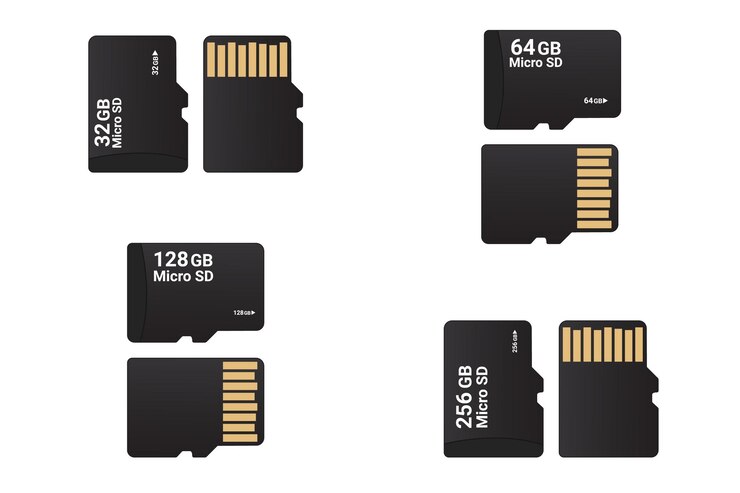
The PiFlux’s native and only vendor-documented OS-switching mechanism is physically swapping the microSD card: power down, eject the card, insert one flashed with a different OS, power back on. No bootloader reconfiguration, EEPROM edit, or partition management is required for an SD-to-SD swap — the Pi 5’s default boot order already looks to the SD slot first, so any card inserted there simply boots. This is what Carbon Computers means by “instant OS swapping,” and it is the entire mechanism the product page describes; Section 4’s software multiboot strategies are this deep-dive’s own extension of general Pi 5 capability, not something Carbon Computers ships or documents.
The implication that follows: each microSD card is a fully independent system, with no shared /home, configuration state, or package database — a Wi-Fi password entered on the Pi OS card has to be entered again on the Kali card, and a file on one card is invisible to the others unless deliberately copied across (USB drive, network share, cloud sync). That’s a real tradeoff against the software multiboot approaches in Section 4, which can share a common data partition, but it buys total isolation: a corrupted OS on one card cannot touch any other, and there is no multiboot tooling in the loop that could itself become a point of failure.
For most builders this is also the simplest and most reliable strategy, requiring nothing more than knowing which card has which OS. Section 4.4 expands on owning several cards; Section 5.2 places the physical swap alongside the software alternatives as the recommended default.
7.4 Multiboot Strategies
Everything past this point in Section 4 is general Raspberry Pi 5 multiboot capability that a PiFlux builder can layer on top of the platform — none of it documented, bundled, or supported by Carbon Computers, and all of it standard Raspberry Pi tooling rather than anything PiFlux-specific. A builder satisfied with the card-swap model in Section 3 does not need any of this.
7.4.1 PINN (Pi Network Install)
PINN — a community-maintained enhancement of the Foundation’s original NOOBS installer — installs several operating systems onto a single SD card (or other boot medium) with a boot-time menu for picking which one to start. Each installed OS gets its own partition set, and PINN manages pointing the bootloader at the selected partition on each boot. It’s available as one of the “Misc utility images” inside Raspberry Pi Imager directly.
Pi 5 support is real but rockier than PINN’s long-established Pi 4 support: bringing it forward required a mandatory 64-bit kernel, a newer GCC/Buildroot base, and a workaround for the Pi 5’s lack of the alternate initrd/initramfs recovery-load mechanism earlier bootloaders relied on. Forum users report successfully dual-booting a Pi 5 via PINN, suggesting the current build is usable, but given how recently these issues were worked through, verify against PINN’s current release notes that the specific OS combination is confirmed working rather than assume full parity with Pi 4. Whether PINN currently supports installing to an NVMe target (relevant with the M.2 Mod fitted) isn’t clearly documented in the sources checked here; a large SD card — 128 GB or larger — is the safer target for three or four installed OSes regardless.
7.4.2 BerryBoot
BerryBoot is an older, separately-maintained multiboot tool: a small bootloader environment presenting a touch-friendly, boot-time OS picker, storing each installed OS as a SquashFS image rather than PINN’s raw partitions. Historically it also supported USB or attached storage, and its touch-driven picker is a natural conceptual fit for the PiFlux’s touchscreen.
The honest status check here did not turn up a published, dedicated Pi 5 build of the core BerryBoot bootloader — the Pi 5 material that surfaced referred to updated game images usable with existing BerryBoot installs on other boards, not a Pi 5-capable BerryBoot release itself, and a Raspberry Pi forum discussion on Pi 5 multiboot treated BerryBoot as not currently up to date for the Pi 5 at all. Its upstream project has also seen markedly less recent activity than PINN’s. This volume is not going to assert BerryBoot as a working Pi 5 option — check its downloads and issue tracker directly before assuming it boots a Pi 5, and default to PINN (§4.1) or one of the storage-split strategies below as the better-supported path on this board.
7.4.3 NVMe primary + SD alternate
For a PiFlux with the M.2 Mod installed, splitting storage rather than sharing a single card is the cleanest multiboot strategy the platform supports without a third-party tool. The NVMe drive holds a primary, daily-driver OS — Raspberry Pi OS or Ubuntu are the natural choices — while the microSD slot holds an alternate such as Kali or Batocera. Switching which one boots is a matter of the EEPROM BOOT_ORDER setting (§5.1) and whether an SD card is inserted: with NVMe ordered ahead of SD, the Pi 5 boots the NVMe OS whenever present and falls back to SD only when it isn’t, or a builder can insert/remove the SD card to force one or the other without touching the EEPROM at all.
This avoids PINN’s partitioning complexity entirely — the two OSes never share a boot medium, each a fully standard, independently-flashed install. It costs the M.2 Mod’s price and installation (Volume 5 §4) and commits the faster NVMe storage to the primary OS. Volume 3 §4 is the direct reference for the boot-from-NVMe procedure — EEPROM update, bootloader configuration, first-boot verification — and Volume 3 §5 covers this exact NVMe-plus-SD layout as a storage topic; this volume’s contribution is the OS-selection side of the same strategy.
7.4.4 Multiple physical SD cards
The simplest multiboot strategy of all needs no software and no partitioning: own three or four microSD cards, each flashed with a complete, independent OS, and swap between them as in Section 3. At roughly $10–$15 for a 32 GB card, a Pi OS card, a Kali card, and a Batocera card run to perhaps $30–$45 in incremental cost — inexpensive next to the M.2 Mod or either radio add-on.
The advantage over every software option above is structural: no multiboot tool, partition table, or shared boot medium that could itself misbehave and take down more than one OS at once. Each card is independently replaceable, independently backed up (a full-card image via Raspberry Pi Imager’s read function), and entirely isolated from any other card. This suits a builder who wants Batocera on one card for casual field gaming and Kali on another for occasional pentest work, without committing either OS to the M.2 Mod’s NVMe drive or accepting PINN’s shared-card partitioning. Carbon Computers itself sells 128, 256, and 500 GB SD cards (Volume 1 §5) explicitly framed as usable for “additional OS swap cards” — this strategy is, in effect, the one the vendor’s own accessory catalog anticipates.
7.5 Boot-Selection Workflow
7.5.1 Configuring the Pi 5 bootloader order
The Raspberry Pi 5 reads its bootloader from an onboard EEPROM rather than the SD card, and that EEPROM holds a BOOT_ORDER setting controlling which storage device the board tries first, second, and so on, independent of whichever OS media is physically present. The value is a hexadecimal string read right to left, one nibble per boot source: 1 is the SD card, 4 is USB mass storage, 6 is NVMe, and f is a restart marker looping the sequence if nothing bootable is found. A default, SD-first order with a USB fallback reads as something like 0xf41 — SD first, then USB, then restart.
For the SD-swap model in Section 3, no change is needed — the SD card is already tried first by default. For the NVMe-plus-SD strategy (§4.3), the order needs NVMe ahead of SD; a commonly documented value is BOOT_ORDER=0xf416, which right-to-left tries NVMe (6) first, falls back to SD (1), then USB (4), before restarting. The setting is edited with sudo rpi-eeprom-config --edit followed by a reboot; a non-HAT+ NVMe adapter may additionally need PCIE_PROBE=1 added to enable PCIe enumeration. Because the exact default and hex value in use can shift between EEPROM firmware revisions, reading the board’s current setting first (sudo rpi-eeprom-config, no --edit) is safer than assuming any one value applies unmodified. Volume 3 §4.1 covers this same procedure for the M.2 Mod specifically, including the firmware update step (sudo rpi-eeprom-update -a) that should precede any BOOT_ORDER change on a board with stale firmware.
7.5.2 Day-to-day OS switching
The three multiboot strategies carry different day-to-day overhead. The physical SD-card swap (Section 3, and §4.4 at multi-card scale) requires powering off, exchanging the card, and powering back on — no menu, just whatever OS the card holds. PINN (§4.1) adds a boot-time picker the builder actively selects from, roughly a normal boot plus a few seconds of menu interaction. The NVMe-plus-SD strategy (§4.3) is closest to the physical-swap model day to day: with BOOT_ORDER set once, switching is inserting or removing the SD card to override which OS boots, or leaving it configured and letting NVMe win by default.
Of the three, the physical card swap is the most failure-resistant, having the fewest moving parts — no EEPROM setting to get wrong, no shared partition table a bad write could damage. It’s the recommended default unless there’s a specific reason (the M.2 Mod already installed, wanting NVMe’s speed for a primary OS) to prefer one of the other two.
7.6 Add-On Driver Compatibility Matrix
The matrix below reflects how confidently each add-on’s driver support can be expected to carry across the six OS choices. Three add-ons depend on generic, well-established Linux subsystems any current distribution handles the same way: GPS over USB-serial/UART is universally served by gpsd, packaged everywhere; SDR front ends of the RTL-SDR class rely on librtlsdr plus ordinary USB access, again broadly portable; M.2 NVMe is a PCIe block device serviced by the kernel’s own driver, thoroughly mainlined at this point. Two are less certain: LoRa depends on a SPI-connected module and a device-tree overlay Carbon Computers has, as far as this volume’s sources show, only explicitly confirmed against Raspberry Pi OS; and the External WiFi Mod’s support depends entirely on the adapter’s wireless chipset, a detail Carbon Computers doesn’t publish, so it varies by distro rather than by any universal standard. Batocera, a single-purpose gaming appliance rather than a general desktop, doesn’t expose the broader peripheral stack these add-ons assume — its entries reflect that scope limitation, not an untested gap.
Table 1 — 6. Add-On Driver Compatibility Matrix
| Add-On | Pi OS | Ubuntu | Kali | Parrot | Twister OS | Batocera |
|---|---|---|---|---|---|---|
| M.2 NVMe | Confirmed | Confirmed | Confirmed | Likely (mainlined NVMe support) | Confirmed (inherits Pi OS) | Storage use only, not general PCIe expansion |
| GPS (GPSD) | Confirmed | Confirmed | Confirmed | Likely (gpsd packaged) | Confirmed (inherits Pi OS) | N/A — outside appliance scope |
| LoRa | Confirmed (vendor overlay) | Likely — generic SPI/spidev works, overlay not vendor-confirmed | Likely — same caveat as Ubuntu | Likely — same caveat as Ubuntu | Confirmed (inherits Pi OS) | N/A — outside appliance scope |
| Ext. WiFi Mod | Likely (chipset-dependent) | Likely (chipset-dependent) | Confirmed — Kali’s driver/firmware set targets monitor-mode chipsets directly | Likely — similar security-tool lineage to Kali, not independently confirmed | Likely (inherits Pi OS chipset support) | N/A — outside appliance scope |
| SDR (Advanced Radio) | Confirmed (Volume 8) | Likely (same userspace tools, RTL-SDR drivers mainlined) | Likely — Kali packages most SDR tooling | Likely — similar tooling available | Confirmed (inherits Pi OS) | N/A — outside appliance scope |
| Active Cooling (fan PWM) | Confirmed | Likely (fan PWM support mainlined in current kernels) | Likely — Pi 5-specific kernel tracks close to Pi OS | Likely — Linux 6.6 LTS base per §2.4 | Confirmed (inherits Pi OS) | Likely — stable Pi 5 image, inherits kernel fan-PWM (§2.6) |
A builder relying on any “Likely” entry above for a field-critical use case should test that specific add-on against that specific OS before depending on it away from the bench — the hedge reflects a lack of an explicit Carbon Computers or upstream-project confirmation, not a known failure.
7.7 Resources
Table 2 — 7. Resources
| Resource | URL |
|---|---|
| Raspberry Pi OS | https://www.raspberrypi.com/software/ |
| Ubuntu for Raspberry Pi | https://ubuntu.com/raspberry-pi |
| Kali Linux ARM | https://www.kali.org/get-kali/#kali-arm |
| Kali Linux Raspberry Pi 5 documentation | https://www.kali.org/docs/arm/raspberry-pi-5/ |
| Parrot Security OS | https://www.parrotsec.org/download/ |
| Parrot Security OS Raspberry Pi installation docs | https://parrotsec.org/docs/installation/raspberrypi/ |
| Twister OS | https://twisteros.com/ |
| Batocera | https://batocera.org/ |
| Batocera single-board-computer support notes | https://wiki.batocera.org/choose_a_single_board_computer |
| PINN (Pi Network Install) | https://github.com/procount/pinn |
| BerryBoot | https://www.berryterminal.com/doku.php/berryboot |
| Raspberry Pi 5 bootloader / EEPROM configuration | https://www.raspberrypi.com/documentation/computers/raspberry-pi.html |
| Vol 2 — RAM tier selection | ../../PiFlux/02-inputs/volume_sources/vol2.md |
| Vol 3 — NVMe boot configuration | ../../PiFlux/02-inputs/volume_sources/vol3.md |
| Vol 5 — Add-on catalog (External WiFi Mod, radios, M.2 Mod) | ../../PiFlux/02-inputs/volume_sources/vol5.md |
| Vol 8 — SDR software stack | ../../PiFlux/02-inputs/volume_sources/vol8.md |
Comments (0)